

Introduction to General Ledger Transactions
To process general ledger transactions in Sage Pastel Partner, we use the ENTRY TYPE called “general journals.” The ENTRY TYPE represents the book of original entry. Whenever you hear “entry type,” remember it refers to the book of original entry.
Accessing the General Journal
- Click on Process: Navigate to the Process menu.
- Select Journals: From the dropdown, select Journals.
- Click on General Journal: This will open the General Journal window.
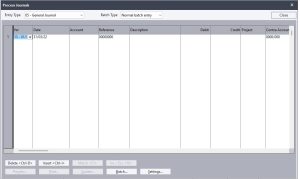
Before we dive into capturing general ledger transactions, let’s define some key terms.
What Are General Ledger Transactions?
General Journal transactions are defined as transactions that are not:
- Cashbook transactions
- Customers or Debtors transactions
- Suppliers or Creditors transactions
Defining Cashbook, Debtors, and Creditors Transactions
Cashbook Transactions: These include all transactions involving cash, bank, and electronic money (credit cards, ecocash, debit cards). If a transaction involves cash in any form, it is captured through the cashbook.
Debtors Transactions: These involve sales and returns of products and services to customers or debtors done on account (i.e., no cash involved). These are captured through the Customer Journal. If cash is involved, the transaction is captured through the cashbook instead.
Creditors Transactions: These involve purchases and returns of products and services from suppliers or creditors done on account. These are captured through the Suppliers Journal. If cash is involved, the transaction is captured through the cashbook instead.
Determining the Transaction Type
Before capturing a transaction, you must identify its type:
- Is this a General Ledger transaction?
- Is this a cashbook transaction?
- Is this a Customers/Debtors transaction?
- Is this a Suppliers/Creditors transaction?
Choose the appropriate entry type or book of original entry accordingly. This step is crucial.
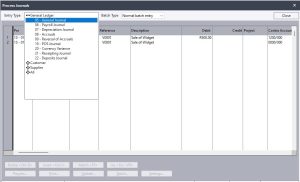
Understanding the General Journal Window
The General Journal window consists of the following fields:
- Entry Type: The name of the book of original entry (General Journal in this case).
- Period: The month the transaction occurred.
- Date: The date on which the transaction occurred.
- Account: The general ledger account being debited or credited.
- Reference: A code to trace the transaction.
- Description: Describes the nature of the transaction.
- Debit Column: Enter the amount if debiting the account.
- Credit Column: Enter the amount if crediting the account.
- Project: The cost center affected by the transaction.
- Contra Account: The account that will be debited or credited based on the account column entry.
Buttons in the General Journal Window
- Delete: Delete a line or the entire batch.
- Insert: Insert a line in the batch.
- Match: Not applicable here.
- Inclusive/Exclusive: Not applicable here.
- Preview: Preview transactions before updating.
- Print: Print the batch.
- Update: Post transactions to the general ledger, automatically updating the trial balance, income statement, and balance sheet.
- Batch: Update batch settings.
- Settings: Automate some batch processes, like incrementing reference numbers.

