

Prerequisites
Before you begin, ensure you have a recent backup of your company data. Without a backup, data restoration will not be possible.
This process is crucial after experiencing data corruption or a mishap with your computer. Here’s a step-by-step guide to help you through the data restore process.
Step-by-Step Guide to Restoring Company Data
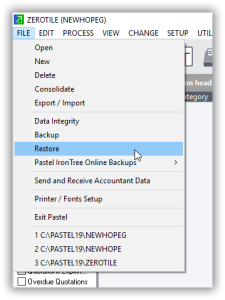
- Access the Restore Function:
- Open Sage Pastel Partner.
- Navigate to the File menu.
- Click on Restore. This will open the file restore window.
Select Backup Location:
- In the file restore window, you will see an option labeled Where to Restore From.
- Click on the dropdown arrow next to this option and select the drive where your backup is stored. For this tutorial, we’ll select drive F:, as that’s where our backup is located.
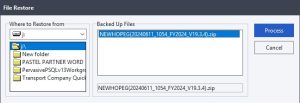
Choose the Backup File:
- After selecting the drive, a list of available backups will appear.
- Select the backup file you wish to restore.
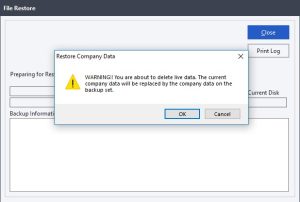
Initiate the Restore Process:
- Click on the Process button.
- A warning message will appear, notifying you that you are about to replace the current company data with the data from the backup. Confirm this action by clicking OK.
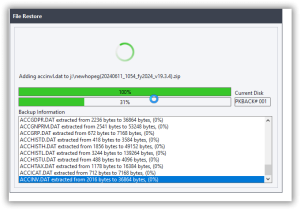
Wait for the Restore to Complete:
- The restore process will commence. The duration will depend on the size of the backup file. This might take a few seconds to complete.
Log into the Restored Company:
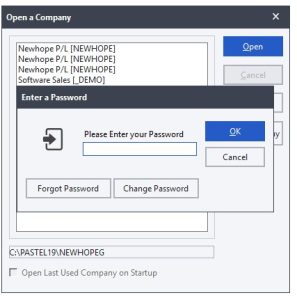
- Once the restore process is finished, you will be prompted to log into the company.
- Enter your password to access the restored company data.
That completes our lesson on restoring company data in Sage Pastel Partner. Following these steps ensures that you can quickly recover from data issues and resume your business operations smoothly.
Thank you for following along, and we hope this tutorial was helpful.


